How do I put a new server to work from my dashboard?
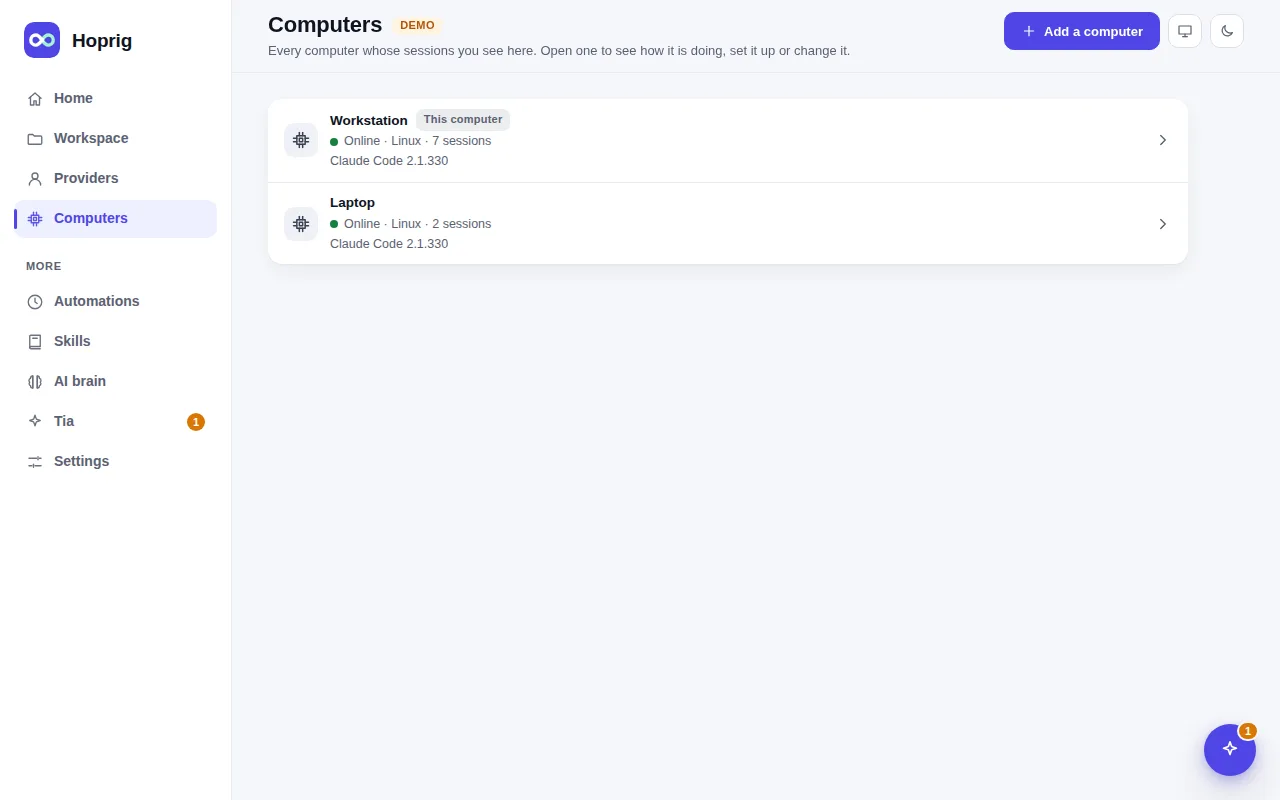
With the server's address and the key file its provider gave you, add it on Computers → Add a computer. The page checks the server's host key with you, installs Hoprig there, shows its health with a Fix for each problem, and runs a gateway on it as a service. Adding it, its host key, the install, its health and its gateway happen on the dashboard. A few of its checks can still only be fixed in a terminal on the server (running its dashboard as a service, hoprig setup): Health shows each as the one line to type there. A suggested skill is added on that computer's Skills page, and a restart is on its page under Advanced → Power → Restart where the system lets your user restart it without a password.
Who this is for
You rented a server, or have a spare machine on your network, and you want your coding sessions, or a gateway, to run there. You would rather not spend an evening in its terminal.
The problem
People ask "how do I run Claude Code on a VPS" and "how do I manage several coding machines from one place". Each server means installing the tools again, keeping the dashboard safe from the internet, and one more address to remember.
What Hoprig does
- Computers → Add a computer → I can reach it by SSH from this computer → I have a key file for it. Type its address (such as
203.0.113.7), the user and the SSH port, paste the private key or pick its file, and press Next. (If this computer already logs in there withssh user@server, choose This computer already logs in there instead.) - The page shows the server's host key print. Compare it with the one in the server provider's panel and press It matches. Nothing logs in before that. The key is kept only in Hoprig's own folder for keys and is never shown again.
- When Hoprig is not on the server yet, press Install Hoprig on 203.0.113.7: the installer runs there with the same key and its lines show as they come. Then the server stands under Computers.
- Open it, then Health: its checks with a Fix on each line that has one, its versions, whether its dashboard runs as a service, where it listens, its load, memory and disks. Every fix asks first, naming the server and what it runs; one that needs administrator rights says so.
- Under Gateways on the same part: Start a gateway there, then Run as a service (the file and the commands are shown first), so it comes back after a restart of the server. A gateway that names its first password's line shows what it printed first here, once. If the page says its services start only after you log in there, press Let them start after a restart.
- Open its page: from a browser on the computer your dashboard runs on, a forward on that computer's own address leads to the gateway's page, with a Stop.
- Setup, Workspace and New session work for the server as for any computer: choose it under Computer.
What you need
- The server's address, its SSH user and port, and a private key without a passphrase that the server accepts.
- A server with Linux (its services are systemd user services; macOS gets a launchd agent).
What it does not do
- Take a key with a passphrase. Hoprig never asks for a passphrase or keeps one.
- Show the first password of a gateway that does not say which line holds it. Its log on that server is then as it prints it, readable by that user only; the Start confirmation says so.
- Open a gateway's page from a phone, or on a computer linked without SSH. The forward is on the computer your dashboard runs on, to a computer added by SSH; elsewhere the page says in one sentence where to open it.
- Check the server's access after an install without questions. The installer runs with set-up's defaults. Through the SSH tunnel the server's dashboard can stay on that computer only.
- Let services start after a restart where
sudoasks for a password. The page never takes that password: it gives you the command to type there once. - There are no user accounts or roles: whoever signs in to your dashboard can drive the server too.
- A server your computer cannot reach by SSH (at home, behind a router) joins in the other direction instead: It is at home or behind a router on the same page.