# Code in a chat
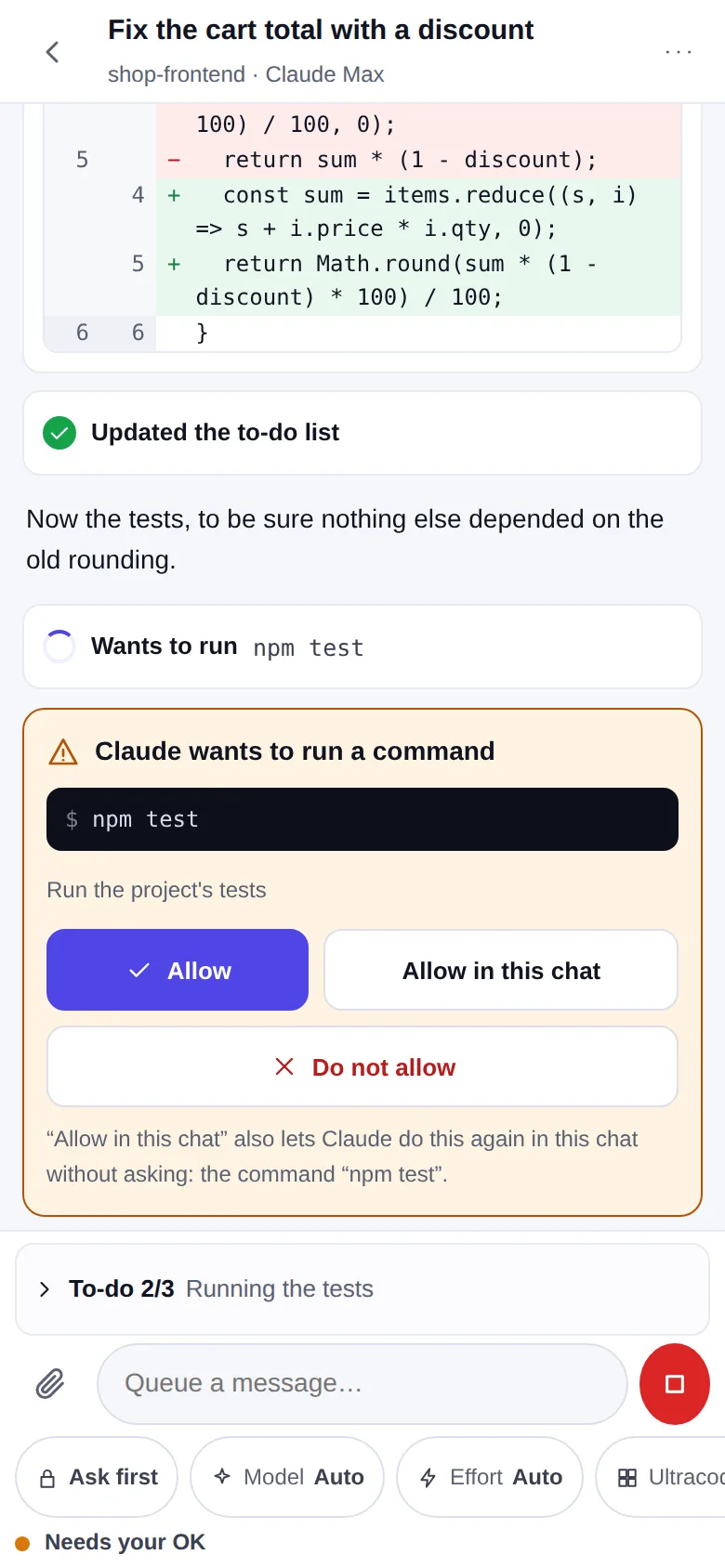
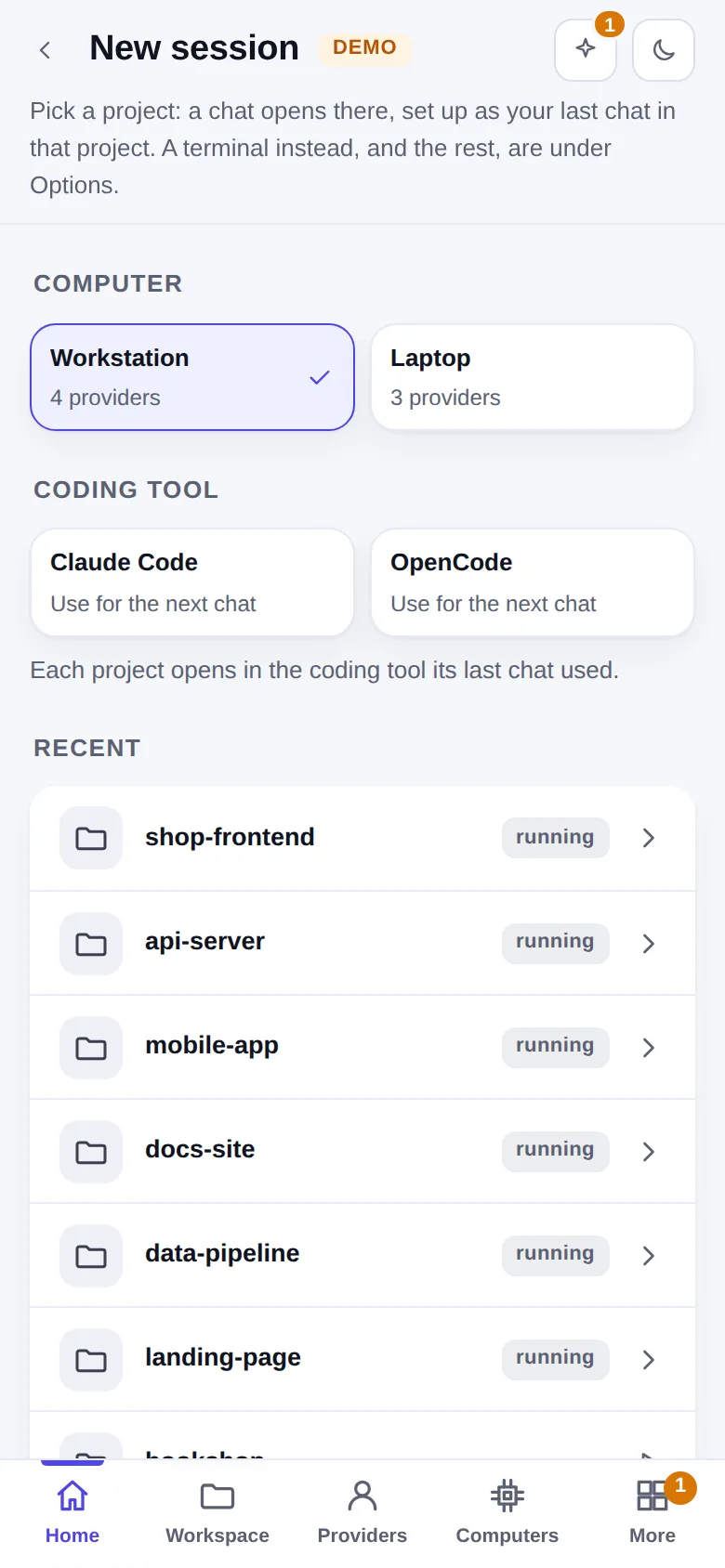
**New session** on Home (or a project's **New session**) asks two things at once, **App** (a chat, like the
Claude Code app) or **Terminal**, and the coding tool, then starts in the project you pick. The App takes the
provider, mode, model and effort of the last session there (the first time: **Settings → New-session defaults**).
From a terminal on that computer, `hop chat [folder]` prints the chat's address and opens it in the browser.
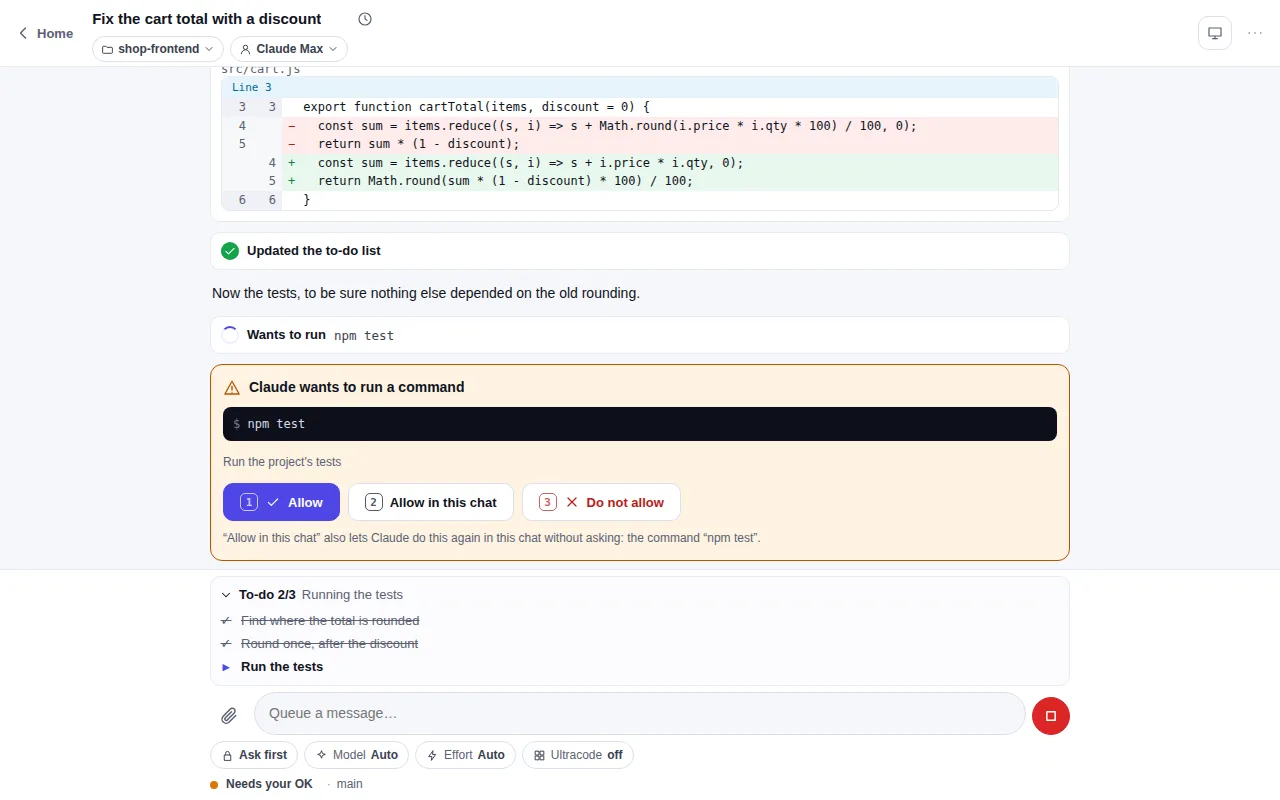
- **What you see**: the reply as it is written, thinking, each tool call on one line with its diff, the to-do
list, subagents as a tree under the call that started them, background tasks with their progress.
- **What you control**: the permission mode, the model, the effort and ultracode are chips over the message box
and change without a restart. A message typed while it works is queued, and can be taken back. **Stop** ends
the turn; background tasks go on until you stop them. `/` lists the commands and skills, `@` the folder's
files; a picture can be pasted or dropped in. The status line says what runs now, the branch, the context used
and the plan's limits where the provider reports them. On a wide screen the session rail beside the chat shows the
environment, the folder's changes, the context and the background tasks (**Hide session rail** in the title bar).
- **As in the Claude Code desktop app**: the modes are Manual, Accept edits, Plan, Auto and Bypass permissions; the
caret beside the title opens the session menu (**Transcript view** Normal, Thinking or Verbose, **Open in**,
**Archive**, **Copy branch name**); the title bar has **Open in Terminal**, **Changes** and **Files**, and its ⋮ menu
**Background tasks** once there are some. Dollars per turn show only in Verbose and only for a provider billed by
use.
- **Its OKs**: **Allow**, **Allow in this chat** (stops the asking for that kind of call until the chat closes;
nothing is written to a settings file) and **Do not allow**, in the chat and on its card on Home. In the mode
Bypass permissions Claude Code asks nothing except before some deletes; Hoprig answers for it only when the delete
is plainly inside the session's folder. A question to you, a plan to approve, what your own settings insist on
and any other delete Claude Code stops for still come to you, and a "deny" rule of your settings stays denied in
every mode.
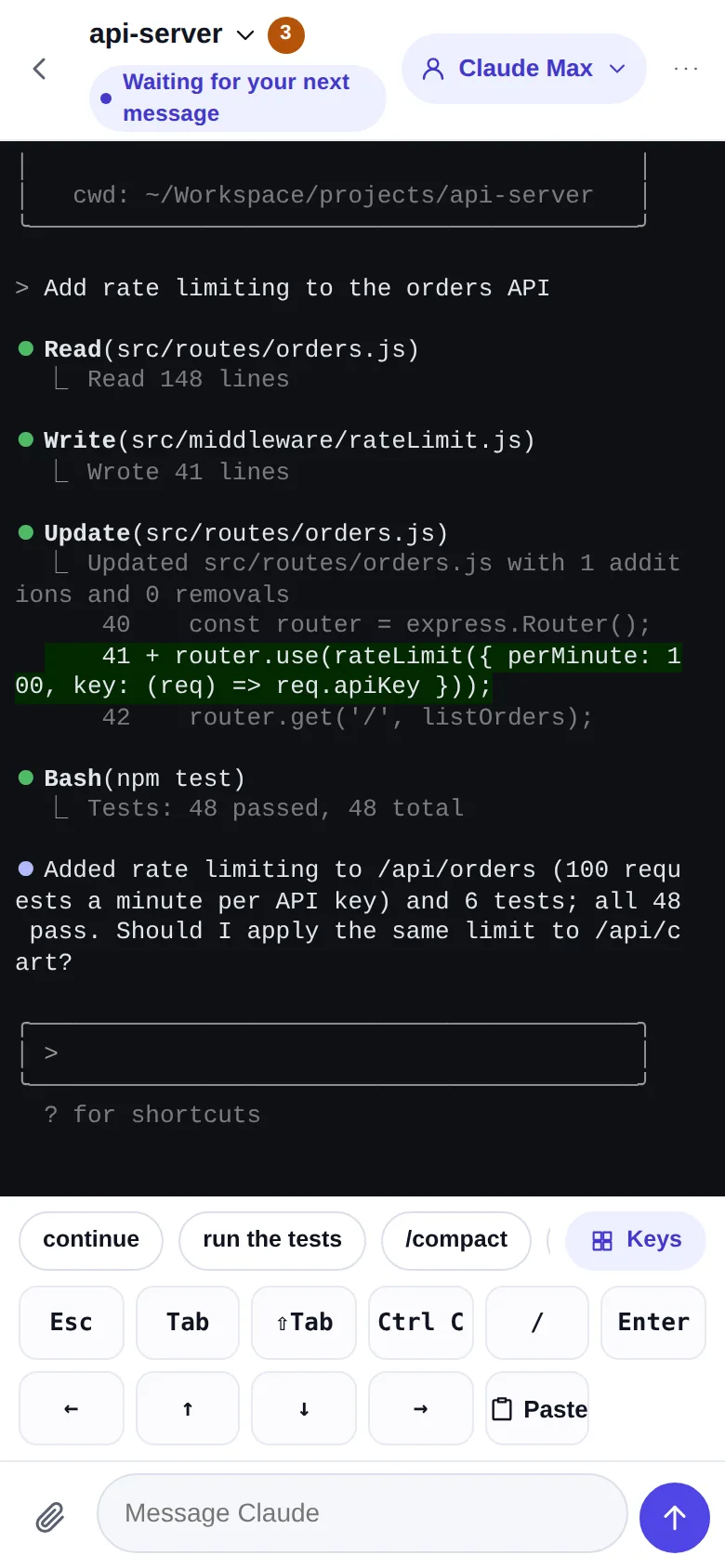
- **One place at a time**: **Open in** → **Terminal** in the session menu takes the conversation to a real
terminal, and **Open as chat** in a terminal session's menu brings it back. A conversation runs in one process
only: a chat, a terminal session, or `hop` typed by hand in any terminal of that computer. The second one is
refused in one sentence that says where the conversation runs and what to do; in a chat, **Continue here** stops
that terminal and goes on in the chat.
**Files** and **Changes** in the title bar open the editor.
## Two coding tools: Claude Code and OpenCode
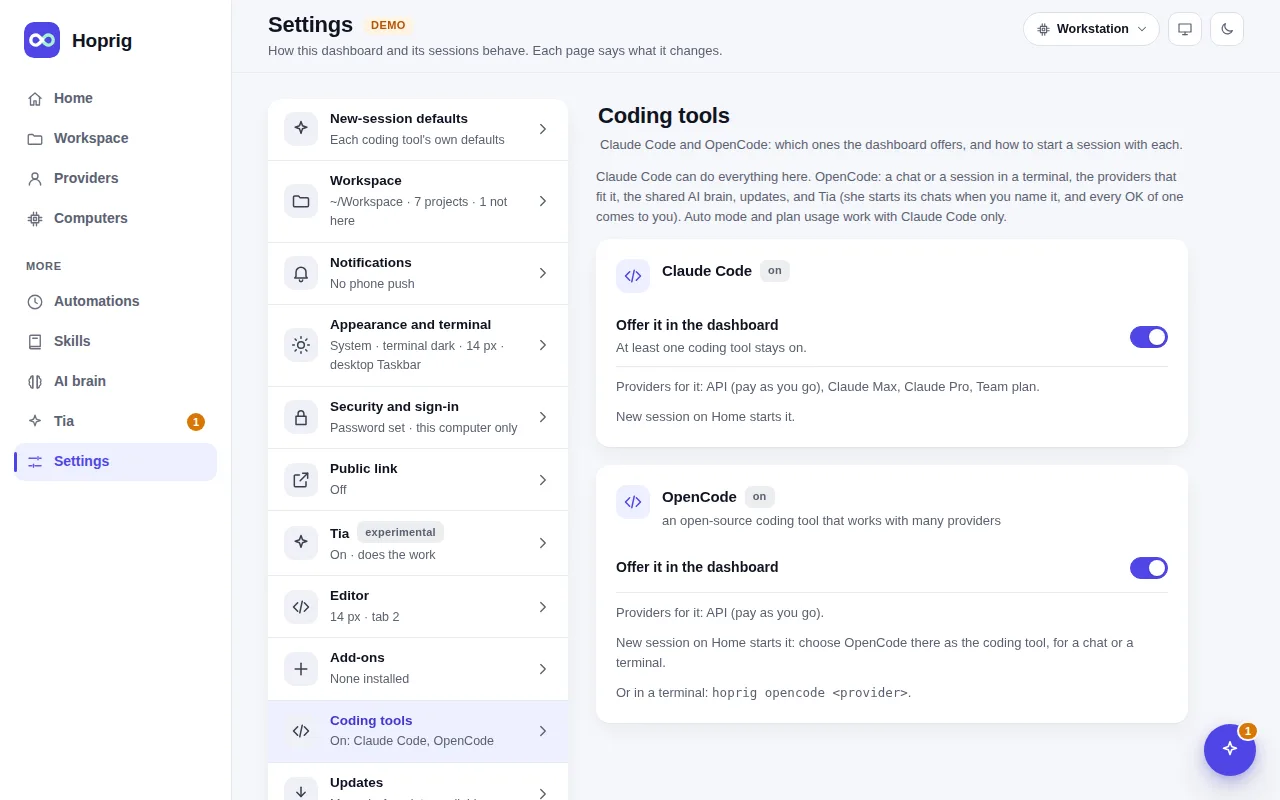
Claude Code can do everything here. **OpenCode** is the second coding tool: a chat or a terminal session, the
providers that fit it, the shared AI brain and updates. Turn it on in **Settings → Coding tools**: **Install**
puts it into Hoprig's own tools folder at the version this Hoprig is tested with (never globally), and its own
self-update and its makers' free cloud models are switched off. New session then offers it next to Claude
Code and keeps the one you chose last; a project's own New session chooses the coding tool that project used
last. In a terminal: `hop opencode [provider]`.
OpenCode runs only on a provider that speaks its API: an API key or a gateway, never a Claude subscription (a
subscription's sign-in is for Claude Code only, always). Auto mode, plan usage and Tia's own thinking are Claude
Code's only.
## One brain for both
`hop workspace link` (or **Link** on the AI brain page) makes every coding tool that is on read the same
global rules, skills and memory from your AI brain, a git repository of your own:
| | Rules | Skills | Memory |
|---|---|---|---|
| Claude Code | `~/.claude/CLAUDE.md` → the brain | `~/.claude/skills` → the brain | its home memory → the brain |
| OpenCode | its global `AGENTS.md` → the brain's rules file | `~/.agents/skills` → the brain | none of its own: the shared rules tell it where each project's memory is |
Nothing is overwritten: a file or folder that is already there is merged into the brain and kept as a dated
backup. Details: [docs/WORKSPACE.md](/docs/workspace/).
---
This page on the web: https://hoprig.com/docs/chat/ · Every page: https://hoprig.com/llms.txt